Advance Requests
Advance payments other than salaries may be given to employees during the year. The advance is a fee given within the monthly salary. On Workcube, you can approve or reject employees' advance requests, a certain amount of advance can be given or prorated according to the employee's salary. The time periods in which these allowances will be given can also be adjusted.
Path: Payroll and Payroll > Wage Allowance
Creating an Advance Request
To create an Advance Request, the first step to follow is to enter the My Home > HR Operations > Creating Advance Request screen.

- Employee:It refers to the field in which the employee is selected.
- Process:It refers to the field where the processes defined in the system are selected.
- Advance Type:It refers to the field where the advance type defined in the deduction definitions is selected.
- Subject: It refers to the field where the subject related to the advance request is entered.
- Description: This refers to the field in which to enter a description regarding the advance given to the employee.
- Information: It refers to the field where the person to be informed about the advance request is selected.
- Priority: It refers to the area where the employee indicates his/her need for advance payment.
- Date: It refers to the field in which the application date for the advance deduction is selected.
- Amount: It refers to the field where the advance amount given to the employee is written.
Another way used to create an Advance Request is the HR-HR > Personnel Payroll > Wage Management and Personnel > Payroll Score screen.
A new advance request must be created from the Deduction Definitions under the Other tab in the Tab Menu.
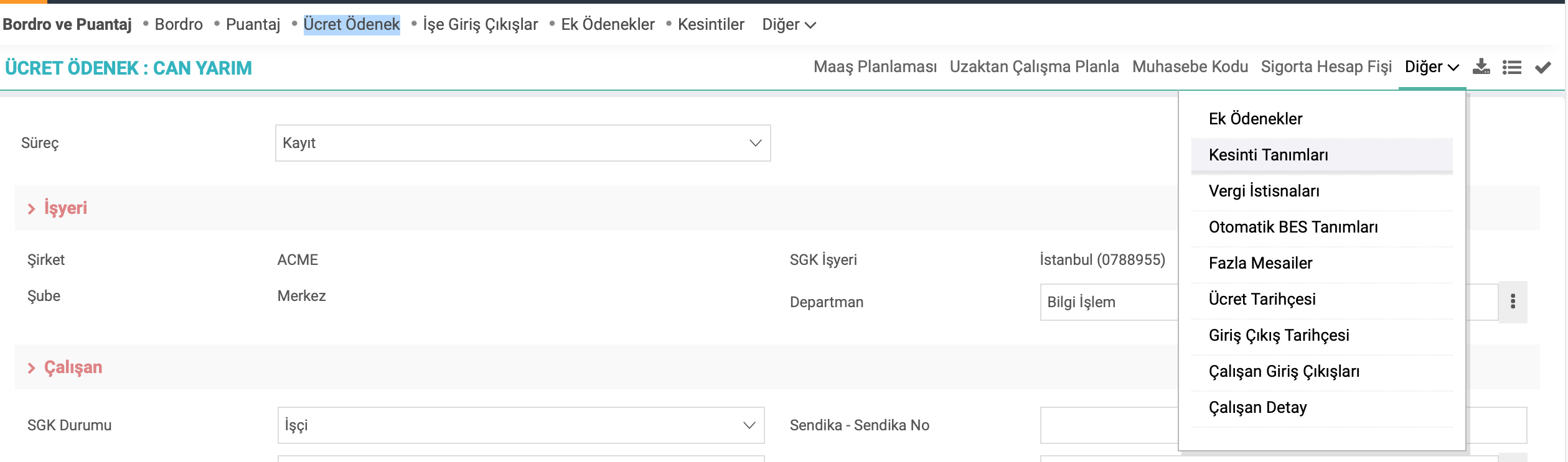
Attention: Advance types come from the "Deduction Definitions" screen.

Approving Advance Request
Advance payments requested by employees are displayed in the HR-HR > Personnel-Payroll > Wage Management and Personnel field.
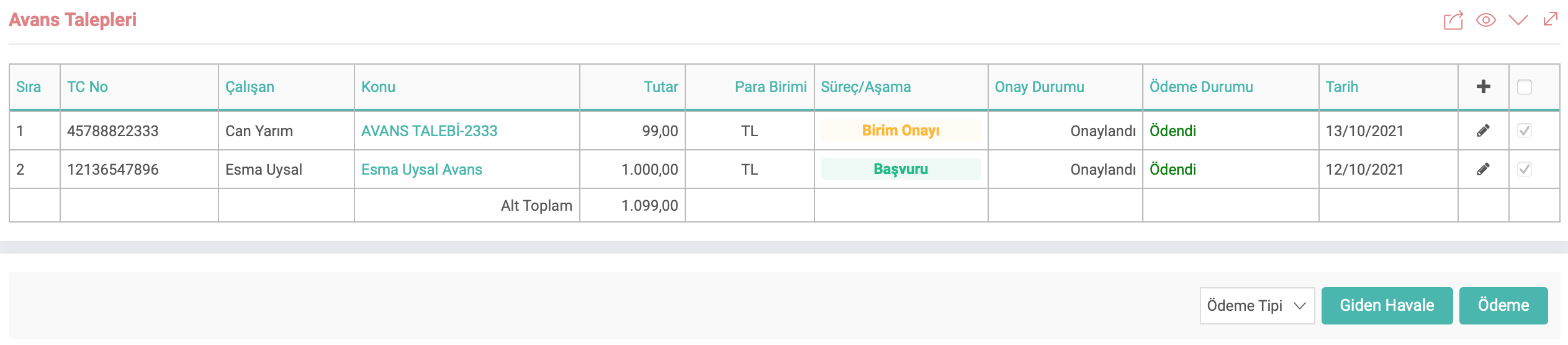
Our primary action must be to approve or reject by clicking on the pencil icon. After giving approval, click on the check box on the side, click on Payment, and click on save from the newly opened window.
Advance Request Control
HR-HR > Personnel-Payroll > Payroll and Payroll, After the saving process is completed, the approved advance request appears on the employee's wage card. checks should be carried out to ensure that the When the employee's relevant month payroll is run through the Payroll and Payroll field, the approved advance is shown in the deductions section.
Creating an Installment Advance Request
The first step to create an Advance Request is HR-HR > Personnel Payroll. >Wage Management and Personnel > Installment Advance Request must be entered by clicking the "+" icon on the Installment Advance Request Creation screen.


- Process: It refers to the area where the processes defined in the system are selected.
- Employee: It refers to the area where the employee is selected.
- Advance Type: It refers to the field where the advance type defined in the deduction definitions is selected.
- Amount: It refers to the field where the advance amount given to the employee is written.
- Number of Installments: It refers to the field where the number of monthly installments of the advance deduction is selected.
- Starting Month: It refers to the field in which the month in which the advance deduction will begin is selected.
- Description: It refers to the field in which to enter a description regarding the advance given to the employee.
Listing and Approving Installment Advance Request

- Filter: When the name and surname of the employee is entered in the relevant field, only the relevant employees It refers to the area where the installment advances will be listed.
- Transaction Start Date: It refers to the area where the installment advances whose requests have been approved are listed as of the selected date.
- Branch: It refers to the area where the relevant branch is selected.
- Status: The relevant installment advances are listed. It refers to the field where the Acceptance/Rejection stages are listed, whichever one is selected.
- Outgoing Transfer: It refers to the field where the remittance transactions of approved advances are made.
- Payment: It refers to the field where the payment status of the transferred transactions is made as paid through the system.
Attention: Approval and listing are done on the same screen.
Attention 2:Acceptance/Rejection stages must first be selected on the pencil icon of the application. If approval is given, outgoing transfer and payment transactions must be made.
Attention 3:Paid advance transactions must be selected in the Payment field.
Feedback
Account Statement
Workcube Account Statement is used for employees in your organization to view their monthly salary account statements, pay slips, advance and installment advance applications.
Wage Management and Personnel
Under the Wage Management and Personnel solution, there are HR functions such as wage - allowance information, overtime, advance payment requests, employee entries and exits and wage arrangements. Along with these functions, wage management and personnel aspects of human resources are managed.
Employee Account Statement Transactions
Workcube Employee Account Statement Transactions refers to the area that organizes a detailed statement by breaking down employees' Salaries, Advances, Job Advances and Other Debts on a yearly and monthly basis.
Human Resources Civil Servant Additional Allowance Definition
This is the area in our Workcube system that contains additional allowance information on the wage card. This is the area where the payroll process of additional allowances defined to the civil servant employee on the scorecard screen takes place.
Human Resources Officer Recruitment and Payroll
In our Workcube system, the civil servant entry is the area where employee information is located through the system. Civil servant area is the area where additional allowances defined for the employee are located.