HR Agenda
Workcube has a user-specific home page structure. The first thing that greets the user when logging into the Workcube system is the "Agenda" page. The agenda page allows us to see every item we add as widgets when we first enter the home page. Due to the structure of the agenda page, there are Widget-Boxes side by side and one above the other. It is moved "top, bottom, right, left" as desired by drag and drop method.
Path: Control Panel > Settings > Agenda
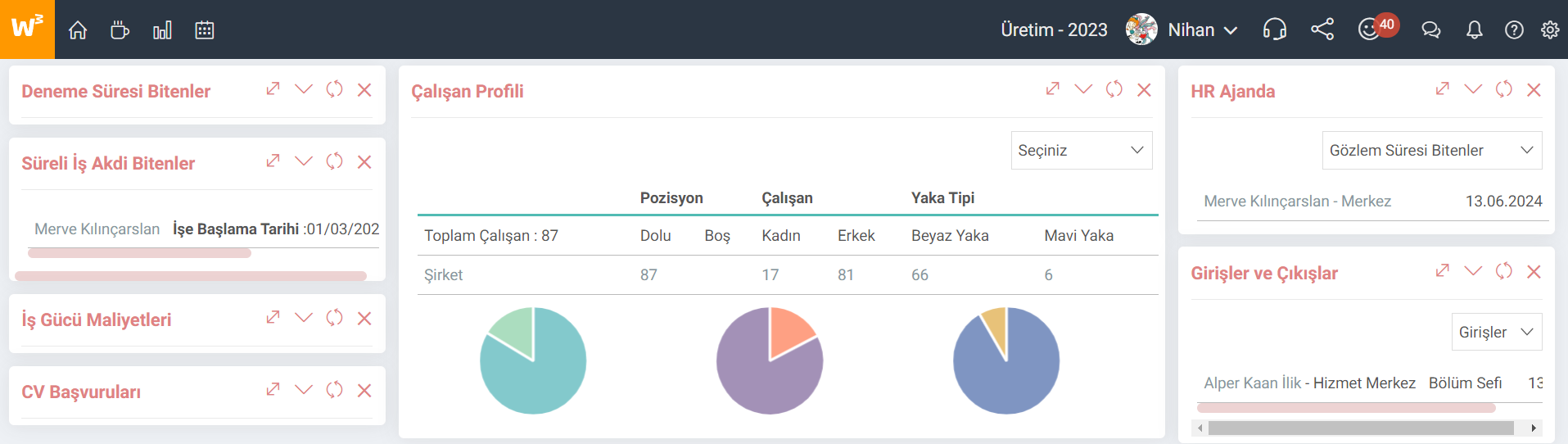
HR Applications (CV) Applications)
Widget-Box where the list of job applicants is displayed by "Human Resources". "Name Surname, Age, Position, Date" parameters are used when listing the candidates. It works in pagination format and lists twenty references per page. Records are listed in order of application date from newest to oldest.
Those with Expired Trial Period
Widget-Box where the employee's record is displayed after the "Trial Period Days" value determined when recruiting the employee expires. While the records are coming, all existing lines are in the following format and there is no pagination.
Those with Expired Term Employment Contracts
Widget-Box that lists the employees with "Permanent Employment Contracts" and "Expired Employment Contracts" who work in fixed-term jobs and/or on a certain job. “Term Employment Contract” lists employees who have expired within the previous seven days or will expire within the next seven days. If the expiration date of a fixed-term employment contract is seven days ago, the name of the employee whose term has expired appears in "Red" color. While the records are arriving, all existing rows are in the incoming format and there is no pagination.
Note: If the user logging in to the system does not have senior HR authority, only the records of the employees in the branches to which he/she is affiliated will be retrieved. There must be senior HR authority to receive all records.
Employee Profile
These are graphics where employees in the Workcube system are grouped according to certain parameters. Charts are created by taking "Total Employees and Company" data. By default, the position, employee and collar type are displayed in the widget. Selection can also be made according to blood type, age, seniority, education level and levels.
Labor Costs
Widget-Box that produces and displays graphs on labor costs according to certain parameters. It has three parameters. First, a specific company or all companies option is selected. Graphs are created by taking "Companies" data. Secondly, the month that is desired to be seen is selected. As standard, records from the previous month appear. Thirdly, one of the "Cost, Overtime, Total Earnings" options is selected. Graphics are grouped according to the parameters in these options.
- Cost: Number of Employees, Employer Cost Without Discount, Employer Cost and Average Cost
- Time: Number of Employees, Total Working Hours, Total Overtime Amount and Average Overtime Amount
- Total Earnings: Number of Employees, Total Earnings, Total Earnings Increase Rate, Average Earnings
Note: Information about the active period of the employee is received.
HR Agenda
It is the agenda of the Human Resources department. The options include the parameters "Interview, Training, Fixed-Term Employees, Those on Trial Period, Those Whose Observation Period Has Ended, and Those Whose Proxy Period Has Ended". A maximum of ten entries are available for each option selected in the agenda widget.
- Interview: The start date is in the format "From Today". Start date is listed from oldest to newest. (Interview ID must be entered in the The employment contract termination date is listed from smallest to largest.
- Those in the Trial Period: If the sum of the trial period start date and the test period is "Today or a Date in the Future", it is included in this list. It is sorted from the newest to the oldest according to the start date.
- Observation Period Expired: If the observation date for the employee position is "Today or a Date in the Future", it is included in the list. There is no sorting, they are listed according to the order given by the database.
- Those whose mandate period has expired: If the mandate date for the employee position is "Today or a Date in the Future", it is included in the list. It is not sorted, it is listed according to the order given by the database.
Entries and Exits
Widget-Box where employees' entry and exit dates are listed. It has two options: “Entries” and “Exits”. In both options, employees are listed according to their “Name - Surname” and the “Start” date of employment.
- Entries: Employee Entry Date is within this month.
- Exits: Employee Exit Date is within this month.
My Working Hours - PKDS
When employees in the Workcube system press the login button when starting work and the exit button when they take a break or exit, the employee's clock information and location information can be viewed on the system. It works.
x_show_visit_analyse_form Ajanda Ziyaret Formu Popup Olarak Açılsın
xml_show_offtime_days İzne Ayrılacaklar Kaç Gün Önceden Gösterilsin
x_hr_agenda HR Ajandada Kullanılacak Mülakat ID
Feedback
CRM Agenda
Agenda is the information page that welcomes the user as soon as he logs in. Structurally, it is in the form of widgets. It contains user-specific information and general information. It comes as default at startup. All users can customize their Agenda page.
1.1.3.5. Finance Agenda
Agenda is the information page that welcomes the user as soon as he logs in. The invoices issued or to be issued are displayed in the Finance Agenda and the totals of financial transactions within the company are displayed in the summary field for the manager. The availability of fields depends on module authority.
Personal Agenda
Agenda is the information page that welcomes the user as soon as he logs in. Structurally, it is in the form of widgets. It contains user-specific information and general information. It comes as default at startup. All users can customize their Agenda page.
1.1.3.4. Sales and Purchasing Agenda
Agenda is the information page that welcomes the user as soon as he logs in. Structurally, it is in the form of widgets. It contains user-specific information and general information. It comes as default at startup. All users can customize their Agenda page.
1.1.3. Agenda
Agenda is the information page that welcomes the user as soon as he logs in. With the personalized home page function, the home page is customized in accordance with the user's module privileges.