Service Applications
Service management; maintenance, repair, technical support, etc. regarding after-sales products and services. It covers the processes. With the Workcube Service Module, you can see which type of service was provided to which customers regarding which product or solution, which service ended in what situation, etc. You can control the situations.
Path: CRM > Service-Warranty > Service > Service Applications
Listing Service Applications
You can list the applications using the filtering fields on the Service Applications page. If you click the "More" button, the filtering options will expand.
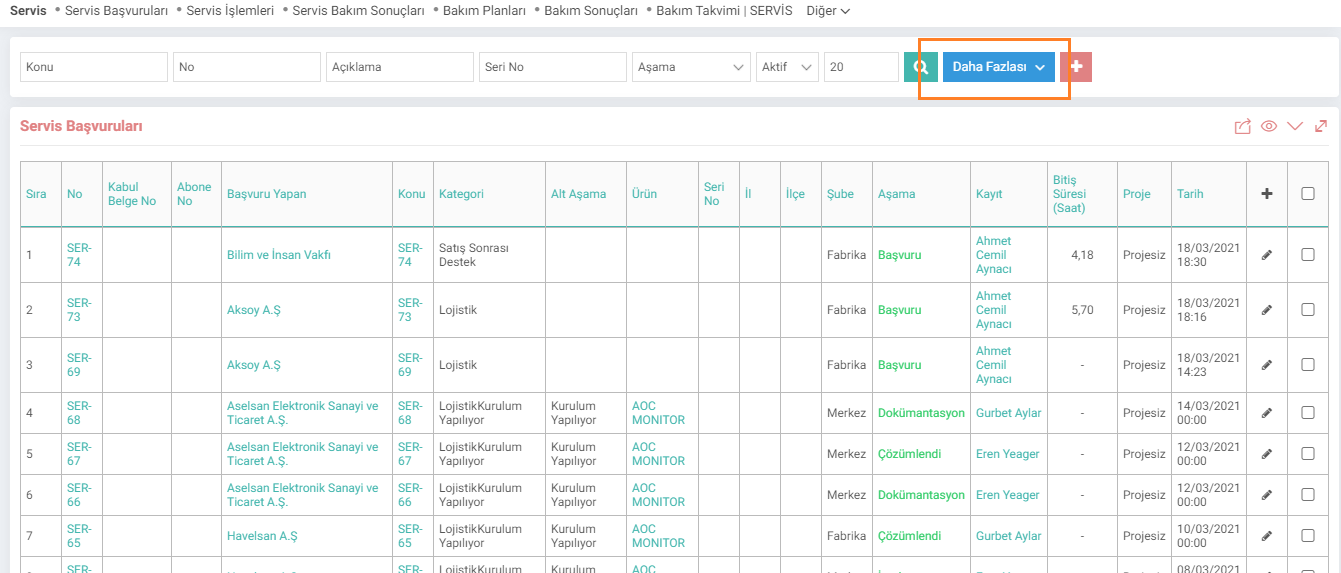
You can go to application details by clicking on the application number or subject. To add a new application, you can click on the "+" icon, and to update the application, click on the "Update" icon at the end of the line.

By selecting the box at the end of the applications and clicking on the marked icon, you can download and print the application as excel, word, pdf, send an e-mail and send it to the Workcube Output Center.
Registering a Service Application
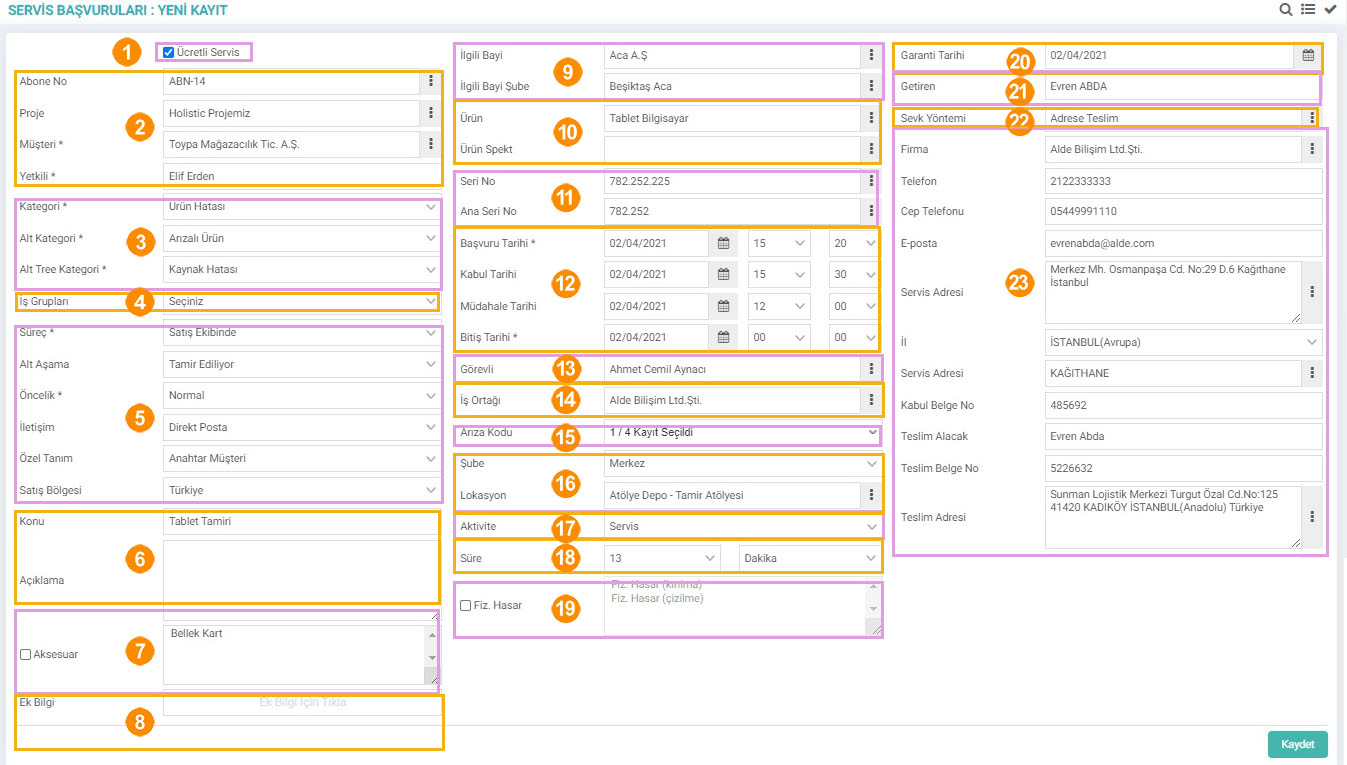
1-Paid Service: If the service provided is paid, this box is displayed. is marked.
2-Client Information: Information about the customer is entered in this field.
3-Category Field: Category is selected from this field. When a category is selected, subcategory options appear depending on the selection. When a subcategory is selected, Alt Tree Category options appear depending on the parent selection. Definitions in this field are made in parameters. If you do not want subcategories to appear, click "Select Multiple Subcategories?" in XML Settings in Page Settings. select the option as “No”.
4-Business Groups: The groups recorded on the CRM > Service-Garanti > Service > Service Business Groups page are selected from this field.
5-The process, sub-stage and priority of the application are determined through the definitions in this field. The communication method to be established with the customer is selected and, if defined, a special definition is selected.
6- The subject of the service and the details of the operation to be performed are written in this field in the description section.
7-Accessory: If the product delivered to the service has a problem in terms of accessories, accessories are selected from this field. Accessories can be defined from the parameters, as well as from the XML settings "Should Accessories Come From Parameters?" If No is selected, it can also be entered manually.
8-Additional information: Additional information definition regarding the service can be selected from this field. Additional information is defined from the parameters.
9-Relevant Dealer and Relevant Branch are selected.
10-The product subject to service and the spec of the product, if any, are selected.
11-The product serial number and main serial number are entered in this field.
12-Service is entered in this field. The relevant dates are selected.
13-Attendant: An officer is selected for the service.
14- Business Partner: If the transaction to be performed will be directed to the dealer and if working with a business partner, selection can be made here.
15-Error Code: The definitions in this field come from the parameters.
16-Branch/Location: Location with the Relevant Branch
17-Activity: If the activity type is defined, it can be specified which process the time is allocated to.
18-Duration: The total duration of the service phase is entered in this field.
19-Physical Damage: If there is physical damage to the product, a description is selected from this field. These definitions come from parameters.
20-Warranty Date: If the product is under warranty, the warranty date is selected.
21-Brought by: The person who makes the delivery is selected.
22-Shipment Method: The shipping method from this field.
23- Acceptance and delivery information is entered in these fields. service and delivery addresses and telephone etc. information is entered. The recipient, delivery document and acceptance document number are defined.
Service Application Detail/Update;
Service applications are listed on the relevant page. To update the application, you can click on the "Update" icon at the end of the line. You will see the application detail page.
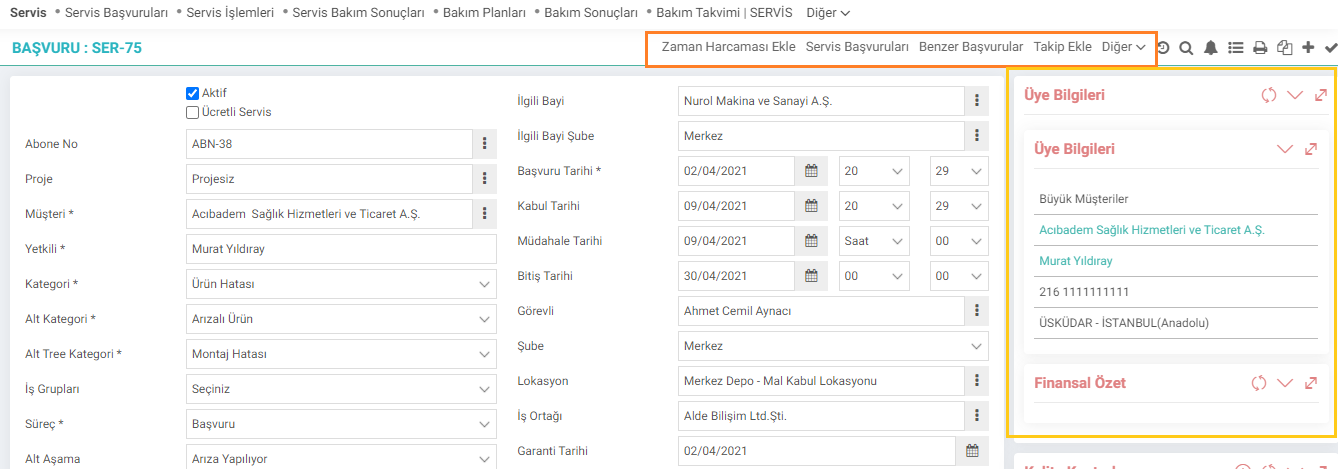
With the help of the links on the top right, you can do the following;
Add Time Expense;
If you enter a time expenditure, the concubine in the application assigns a time expenditure record to the subscriber and the project. In this way, you can see the time spent on the customer.
Service Applications;
This link directs you to other service applications of the relevant member.
Similar Applications;
When you click on the similar applications link, you can see similar service applications from the popup that opens. (It returns applications that are similar to the subject name, it may also be applications of different projects or current ones.)
Add Follow-Up;
Follow-up notes regarding the status of the application are entered in this field. The entered follow-up notes are displayed at the bottom of the page.
You can see Member Information and Financial Summary in the fields on the right. At the same time;

You can view Quality Control and Internal Requests, add related documents from the Documents field or associate them with an existing document in digital assets, add Notes for reference, and create a new agenda or associate it with an existing agenda from the Associated Events field. You can go to the Agendas to associate your application with an event.
With the help of the fields at the bottom of the detail page, you can perform the following operations;
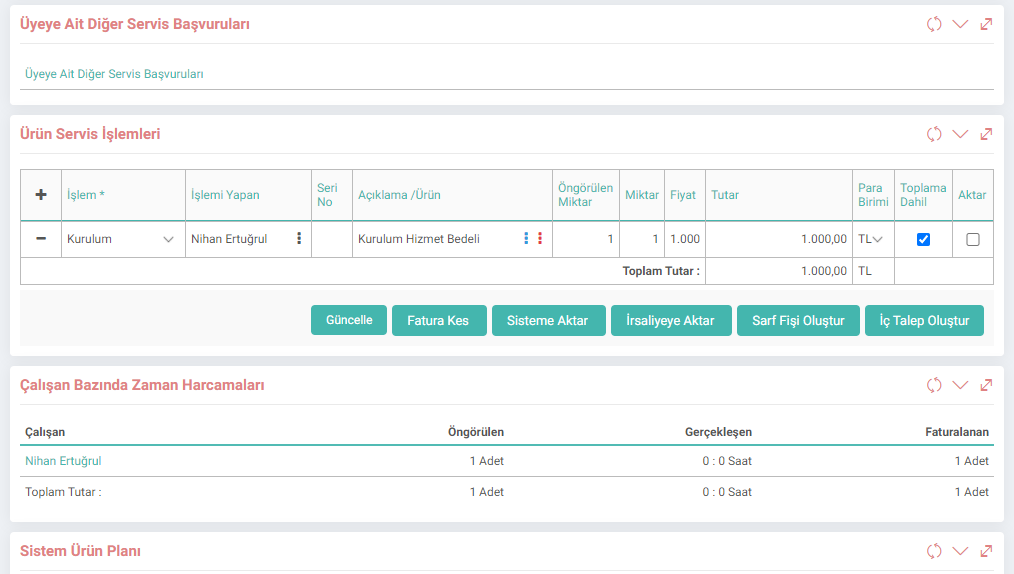
Other Member Service Applications;
When you click, it will take you to the list of service applications, with the application notifying you selected and searched. You can view other applications belonging to the member from this field.
Product Service Transactions;
You can add a service transaction from this field, issue an invoice for the service transaction you added, create a consumption voucher, delivery note, internal request or transfer it to the system with the help of the buttons below.
Time by Employee. Expenses;
From this area you can see the time spent on this service and the employees who spent time.

System Product Plan;
Shows the products and prices defined to the subscriber. If a price change is to be made in Product Service Transactions, the prices defined to the Subscriber can be viewed in this area.
Follow-Ups;
You can view the follow-up notes entered for the application from this area. You can enter a new follow-up by clicking the "+" icon.
Jobs;
From this area, you can open a job record regarding the application and observe the status of the opened job record. Click on the marked icon to associate it with a previously opened job record.

Yapılan işlemlerde harcanan zaman girilir. Aktivite tipi tanımlandığı takdirde zamanın hangi işleme ayrıldığı belirtilebilir.
Bu parametre yardımı ile servis ekibi hataları filtreden geçirebilir, daha hızlı çözüm sağlayabilir.
Servis başvurularında ilgili başvuruyu sınıflandırmak için kullanılır.
Yapılan servise ait hangi durumda olduğunu belirtmek için kullanılır.
Garanti belgelerinde kullanılmak üzere süreler seçilerek ilgili seçimleri sınıflandırmak için kullanılır.
Ek bilgiler, ekranlar üzerinde yapılan kayıtlara ait, o kayda ilişkin detay ya da spesifik olarak eklenmesi gereken bilgiler için kullanılan bir fonksiyondur.
Servis başvurularında kırılım kullanarak sınıflandırmak yapmak için kullanılır. Öncelikle Başvuru alt kategorileri tanımlanmalıdır.
Servis Başvurularında kullanılmak üzere fiziksel hasar tanımları yapılır.
Ürün Servis İşlemlerinde işlem tipi alanında servis görevlisinin yaptığı işlerin tanımı için kullanılır
Servis başvurusu yapılan ürünün aksesuarında bir problem yaşanıyorsa bu aksesuarın seçimi bu parametre yardımı ile yapılır.
Servis başvurularında kırılım kullanarak sınıflandırmak yapmak için kullanılır. Öncelikle Başvuru kategorileri tanımlanmalıdır.
Servis Başvurularında kullanılmak üzere ihtiyaca ve işleyişe bağlı olarak kullanılır.
Garanti belgelerinde kullanılmak üzere garanti sürelerini standartlaştırmak için kullanılır.
Satış sonrası ürün ve hizmet ile ilgili bakım, onarım, teknik destek vb. süreçleri kapsar. Hangi müşteriye hangi ürün veya çözümle ilgili ne tarz bir servis hizmetinin verildiğini, hangi servisin ne durumda son bulduğunu vb. durumlar kontrol edilir.
Satış sonrası ürün ve hizmet ile ilgili bakım, onarım, teknik destek vb. süreçleri kapsar. Hangi müşteriye hangi ürün veya çözümle ilgili ne tarz bir servis hizmetinin verildiğini, hangi servisin ne durumda son bulduğunu vb. durumlar kontrol edilir.
İş süreçlerinin tasarım ve akışlarını oluşturur.
Kaydedilen belgelerin çıktılarının alınması için kullanılır. Standart şablonlar seçilebilir ya da özel şablonlar eklenebilir, ayrıca şablonlar yetkiye bağlanabilir.
is_print_service Servisler Yazdırılabilsin mi?
x_related_company_team İş Ortağı Ekibinde Olduğum Başvurular.
x_control_ims Mikro Bölge Koduna Göre Listeleme
Feedback
4.3.2.3. تقارير الخدمة
يقوم Workcube بتتبع ضمان المنتج وخدمة العملاء وطلبات الدعم من خلال وحدة إدارة الخدمة والضمان. تتضمن تقارير الخدمة أرقامًا تسلسلية لتتبع المنتج وتقارير عمليات خدمة تتبع دعم ما بعد البيع.
4.3.2.1.6. مجموعات الأعمال الخدمية
يتم إنشاء مجموعات عمل الخدمة للتعامل مع تطبيقات الخدمة. فهو يحل تطبيقات خدمة مجموعة الأعمال، التي لها هيكل هرمي، وفقًا للتعريفات المقدمة.
4.3.2.1.2. عمليات الخدمة
إدارة الخدمة؛ الصيانة والإصلاح والدعم الفني وما إلى ذلك فيما يتعلق بمنتجات وخدمات ما بعد البيع. ويغطي العمليات. باستخدام وحدة خدمة Workcube، يمكنك معرفة نوع الخدمة التي تم تقديمها لأي عملاء بخصوص أي منتج أو حل، وأي خدمة انتهت وفي أي موقف، وما إلى ذلك. يمكنك التحكم في المواقف.
4.3.2.1. تعريفات معايير ضمان الخدمة
إدارة الخدمة؛ الصيانة والإصلاح والدعم الفني وما إلى ذلك فيما يتعلق بمنتجات وخدمات ما بعد البيع. ويغطي العمليات. باستخدام وحدة خدمة Workcube، يمكنك معرفة نوع الخدمة التي تم تقديمها لأي عملاء بخصوص أي منتج أو حل، وأي خدمة انتهت وفي أي موقف، وما إلى ذلك. يمكنك التحكم في المواقف.
إدارة الخدمة
إدارة خدمة Workcube؛ من خلال توفير حل كامل وشامل لجميع عملياتك، بدءًا من أوامر العمل والمواد وإدارة الأصول وحتى العقود، ومن تتبع الضمان إلى إعداد الفواتير، فإنه يضمن أنك أو شركاؤك الذين توجه إليهم الخدمات يقدمون خدمة متسقة وفي الوقت المناسب لعملائهم.
رمز خطأ تطبيقات الخدمة
في صفحة تطبيقات الخدمة، تم حل مشكلة عدم حفظ رموز الأخطاء في المستند على الرغم من إجراء تحديدات متعددة.