Genel Kullanım ve Temel Ayarlar
Workcube %100 web tabanlıdır. İnternet tarayıcılar üzerinde kullanılır. Kullanıcının herhangi bir uygulama yüklemesine ihtiyaç yoktur. Workcube yazılımları bir web sitesi gibi çalışır. Kullanıcılar kendilerine verilen kullanıcı adı ve şifreleri kullanarak uygulamaya erişir ve kolaylıkla kullanırlar. Kullanıcıların farklı yetki seviyeleri vardır. Her zaman ilk kullanıcı Admin-Yönetici rolüyle sisteme erişir ve diğer kullanıcıların sisteme erişmesi için bazı ayarlar, tanımlamalar yaparak diğer kullanıcıları açar ve yetkiler vererek sisteme eriştirir.
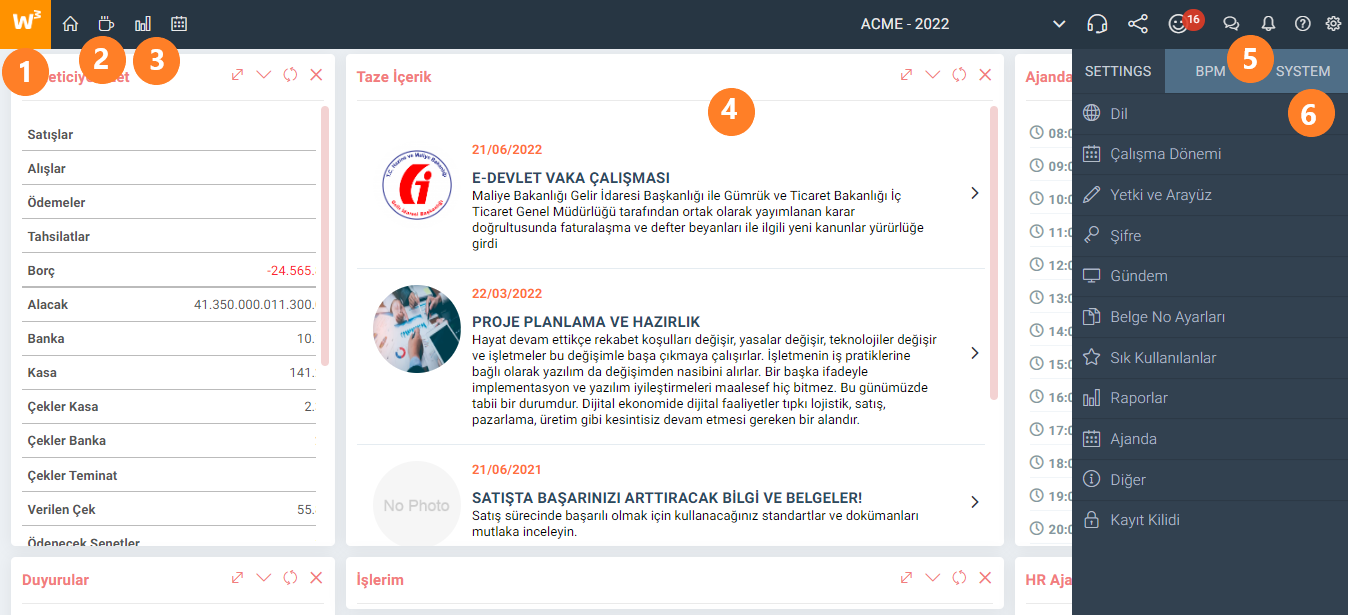
Yukarıdaki resimde görüleceği gibi Workcube ekranı 6 bölümden oluşur.
- Gruplandırılmış Fonksiyonlar – Çözümler/Aileler/Modüller/İş Objeleri
- Intranet ve Kişiselleştirilmiş Ana Sayfa
- Raporlar – Analitik Araçlar
- Tüm Fonksiyonların çalıştığı Gövde – Sayfa
- İletişim Araçları
- Sistem Yönetimi ve Kişisel Ayarlar
Workcube’e Giriş
Workcube'e girmek için kullandığınız bilgisayarınız, tabletiniz veya akıllı telefonunuzdaki web tarayıcıyı açın. Tarayıcı’daki adres alanına sistem yöneticisinin verdiği web adresini yazın. Karşınıza aşağıdaki gibi bir giriş (login) ekranı gelecektir.
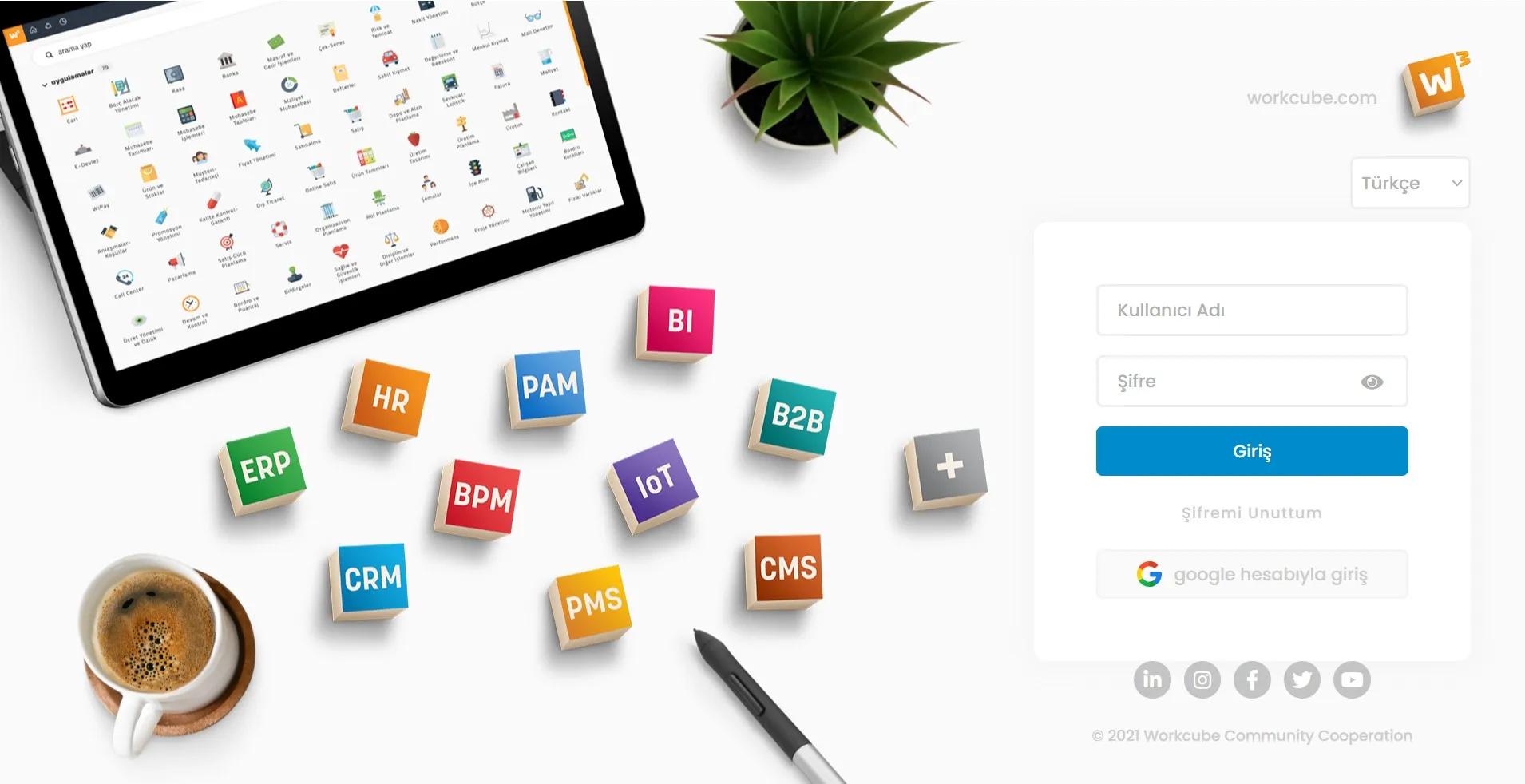
Sistem Yöneticinizin size özel olarak verdiği kullanıcı adınızı ve şifrenizi yazın ve "Giriş" butonuna tıklayın. Sisteme de kullanıcınız var ve bu kullanıcıda gmail şifreniz tanımlı ise Google hesabıyla da giriş yapabilirsiniz.
Giriş yaptığınızda Gündem sayfası yani kişisel ana sayfanız ekrana gelecektir. Kullanıcı adı veya şifresini daha sonra Kontrol Paneli > Settings > Şifre sekmesini tıklayarak değiştirebilirsiniz. Şifre kimse ile paylaşılmamalıdır. Şifre paylaşmak sizin ve işletmeniz için riskler içerir! Şifrenizi unutursanız “Şifremi Unuttum” linkini tıklayarak onaylı mail adresinize yeni şifre talep edebilirsiniz.
Ana Sayfa
Workcube sizi size özel ana sayfanızla karşılar. Kullanıcılar ajanda, işler, mailler, siparişler, teklifler vb. Workcube içerisinde erişim yetkisi olduğu tüm içeriklerden hangilerini kendi ana sayfalarında göreceklerine kendileri karar verebilirler. Bu sayede kendi gündemlerini oluşturarak bilgi özetlerini ana sayfalarında Widget-Box içinde takip edebilirler.
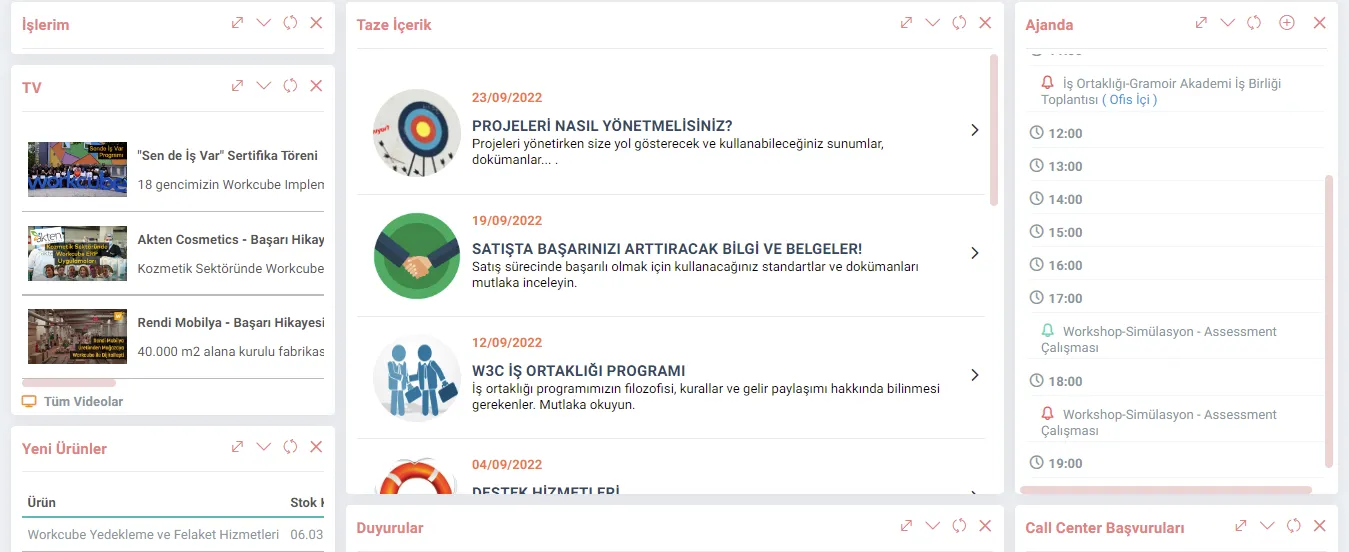
Kontrol Paneli > Settings > Gündem sekmesini tıklayarak hangi alanların gelip/gelmeyeceğini belirleyebilirsiniz. Ayrıca gündem sayfası üzerinde sürükle bırak yöntemi ile sayfayı istediğiniz şekilde tasarlayabilirsiniz.
Başka modül veya sayfalardayken kişisel ana sayfanızı erişmek için ekranın sol üst köşesindeki W3 logosunun yanındaki “Ana Sayfa-Gündem” tıklayabilirsiniz.
Temel İş Fonksiyonlarına Erişim ve Yetkiler
Workcube iş fonksiyonları kullanıcı yetkilerine bağlı olarak ekranda Menü altında sıralanır.
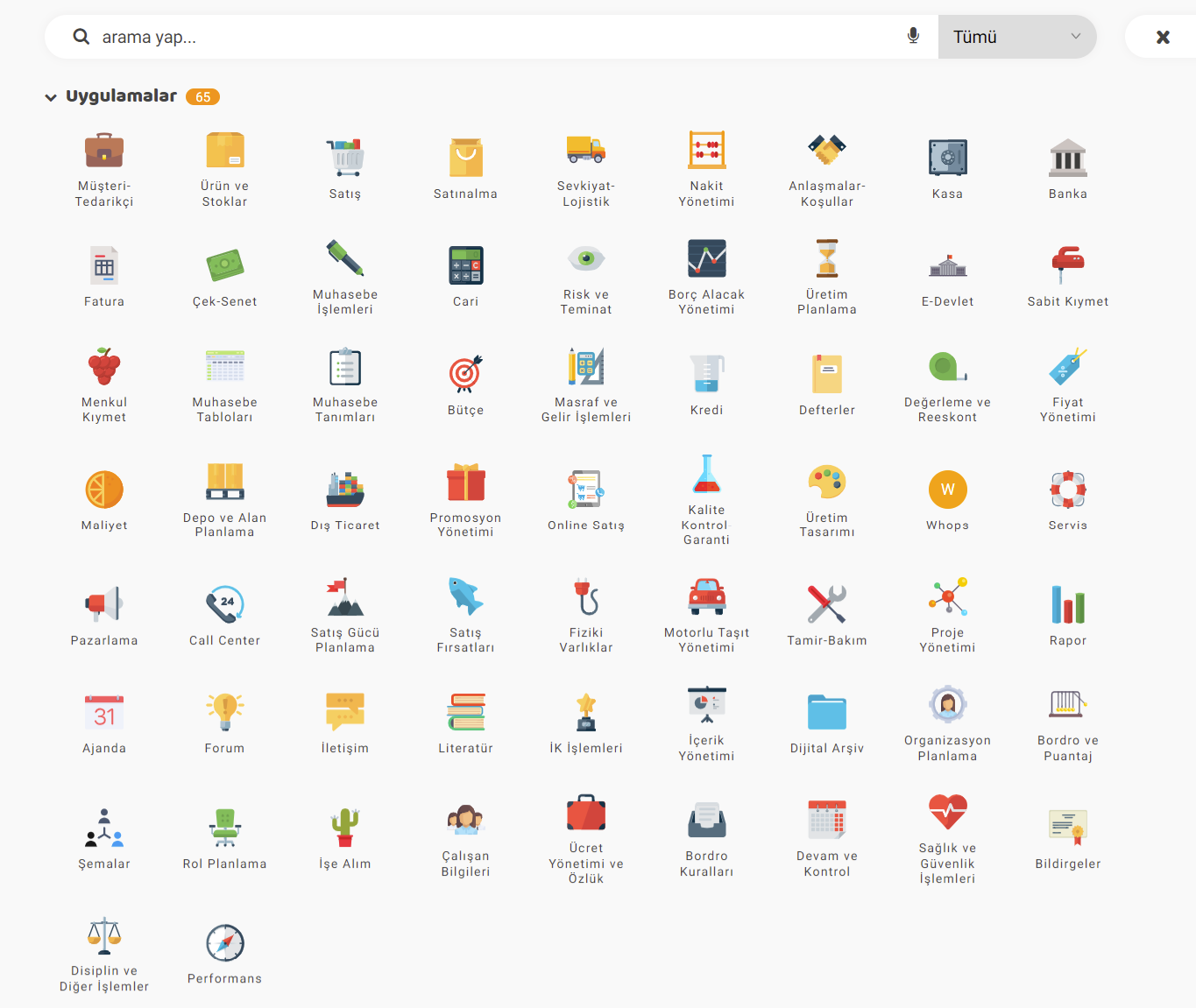
Workcube İş fonksiyonları aşağıdaki gibi hiyerarşik olarak gruplandırılmıştır. > Çözümler - Solutions Bir başka ifadeyle iş objeleri modülleri, modüller iş ailelerini, iş aileleri çözümleri oluşturur. Örneğin; ERP (Çözüm) > Finans & Muhasebe (İş Ailesi) > Banka (Modül) > Havale (İş Fonksiyonu) şeklinde bir yapı vardır. Temel olarak bu gruplama “logic-mantıksal” olarak kurgulanmıştır. Teknik olarak bir iş fonksiyonu istenirse başka bir modülün içine konulabilir. Workcube bu özelliği sayesinde işletmelere veya dikey çözüm geliştiren, best practices yaratan iş ortaklarına kendi menüsünü yaratma imkanı sunar. Bu düzenlemeler; Kontrol Paneli > System > Dev Tools > Menü Designer Kullanıcılar kendilerine verilen yetkiler doğrultusunda menüye girerek ihtiyaç duydukları fonksiyona erişirler veya anahtar bir kelimeyi arayarak iş fonksiyonlarını sıralayabilirler. |
Workcube'de doğru iş fonksiyonlarının doğru yetkilerle kullanıcılara eriştirilmesi Menü Yönetimi ve Yetki Gruplarının doğru şekilde ayarlanmasına bağlıdır.
Tavsiye
Stratejik çerçeve çalışmaları tamamlayın. Özellikle Temel İş Akışı ve QPIC-R canvasları Workcube iş fonksiyonlarının yetkilendirme temelini oluşturur. Workcube'de kullanıcı aynı zamanda çalışan demektir. Çalışanlar ise rollere / pozisyonlarına göre yetkilendirilir. Hangi çalışan hangi roldeyse rolüne göre sisteme erişir. Dolayısıyla Workcube’u doğru kullanmak ve yetkilendirmek için organizasyonel planlamaya özen göstermelisiniz.
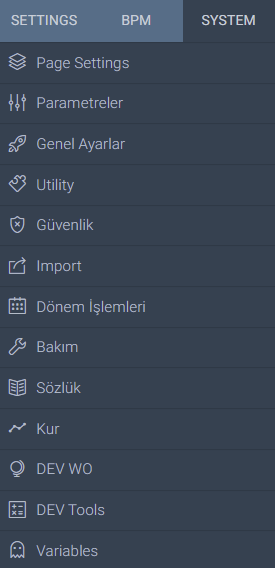 | Ayarlar – Kontrol Paneli Workcube kontrol paneli butonuna tıklandığında üç sekme çıkar. Settings: Kişisel ayarlar Sistem Yönetimi ve Genel Ayarlar sekmesi altında çok sayıda link vardır. Bu sekme ve linkler sadece Admin-Sistem Genel Yöneticisi’nin yetki verdiği kullanıcılar tarafından görülür. |

Sisteme güvenli giriş yapılabilmesi için istenilen algoritma da şifre belirleme ve yenileme işlemleri için kullanılır.
Önceden tanımlanmış ya da özelleştirilmiş otomatik çalışması istenen rapor vb. komutların tanımlandığı iş fonksiyonudur.
is_one_day Eğitim Tarih Aralığı Bir Gün Olsun
is_all_employee Doğum Günlerinde Tüm Çalışanlar Gelsin
is_daily_birthday Doğum Günleri Günlük Gelsin
is_first_content_pic Taze İçerikte Resim Gösterilsin
xml_is_my_members Üyelerim Linki Üye Modülü Yetkisine Baksın?
xml_is_salaried Kesilecek Faturalarda Ücretsiz Servis İrsaliyeleri
x_select_izin Uyarı Sayfasında İzin Kayıtları Gelsin mi?
x_select_avans Uyarı Sayfasında Avans Kayıtları Gelsin mi?
x_select_ajanda Uyarı Sayfasında Ajanda Kayıtları Gelsin mi?
x_select_order Satış Siparişleri
x_hr_agenda HR Ajandada Kullanılacak Mülakat ID
xml_show_offtime_days İzne Ayrılacaklar Kaç Gün Önceden Gösterilsin
x_show_visit_analyse_form Ajanda Ziyaret Formu Popup Olarak Açılsın
x_select_emp Talep Sayfalarında Çalışan Seçilebilsin mi?
xml_list_work İş Listesi Sıralaması
x_show_work_complete İşlerim de Kalan Zaman Yüzdesi Gelsin mi?
xml_work_cc Bilgi Verileceklerde İş Listesine Gelsin mi?
xml_multiple_comp Ajandada Çoklu Şirket Seçeneğine Göre Arama Yapsın mi?
xml_rel_pos İlişkili Çalışan İzin-Avans Talebi Yapabilsin mi?
xml_birthdate_permission Doğum günleri gündeme eklenebilsin mi?
xml_offtime_permission İzinler gündeme eklenebilsin mi?
x_control_ims Mikro Bölge Koduna Göre Listeleme Yapılsın mı?
x_control_rate_user Kur Bilgileri Kontrol Edilecek ve Uyarılacak Çalışan Idleri
x_control_rate_day Kur Bilgileri Kontrol Edilecek Gün Bilgisi
x_cognitive_menu_link_count Cognitive Menü Döndürülecek Bağlantı Sayısı
Yarım Kalan İşler
Ekleme ve güncelleme sayfalarında bir işlem yaparken sayfadan çıkıldığında bunlar yarım kalan işlemler olarak kabul edilir. Sağ üst menü de raptiye ikonu üzerinden yarım kalan işlemler sayfasından ilgili kayda gidilerek en son kalınan yerden devam edilebilir. Bu tarz işlemlerde girilen veriler 72 saat süresiyle arka tarafta tutulur. İstenirse öncesinde de çöp kutusu ikonundan silinebilir.
Saklama işlemlerinde şifre ve dosya alanları ile sistem tarafından yasaklı alanlar kaydedilmez.
Ana Sayfada Kurların Kontrolü Nasıl Çalışır?
myhome.welcome>pagesettings ayarlarında mevcut olan iki ayarın aktif edilmesi gerekmektedir.
- Kur Bilgileri Kontrol Edilecek ve Uyarılacak Çalışan Idleri
- Kur Bilgileri Kontrol Edilecek Gün Bilgisi
Çalışan id ve gün bilgisi yazıldığında eğer kontrol edilen günlerde kur bilgisi mevcut değilse uyarı gelmektedir. İlgili şirkette tanımlı para birimlerine göre kur bilgileri tanımlanana kadar ana sayfada uyarı gelmeye devam eder.
Çalışan id alanına birden fazla kullanıcı virgül ile girilebilmektedir.
Xml ayarı şirket bazında olduğundan her şirket için ayrı çalışan idleri ve ayrı gün tanımlaması yapılabilmektedir.
Bu kontrol sayesinde herhangi bir sebeple kur bilgilerinin olmaması durumunda kullanıcılar uyarılmış olacaklardır, dövizli işlemlerde uyarı ile birlikte yanlış işlemlerin önüne geçilebilecektir.
Yeni başlayan için rehber nasıl açılır?
Kontrol Paneli > Settings > Gündem ayarları üzerinden "Yeni Başlayanlar İçin Rehber" kutucuğu işaretlenerek ana sayfa da gelmesi sağlanır. Bu rehber ile birlikte kullanıcılar Workcube'ü kullanmaya başlamadan önce hangi dokümanları okuması gerektiğini ve implementasyon adımlarını inceleyerek Workcube'ü daha kolay öğrenir.
Üretim Gündemi Dashboard'u ile Hangi Bilgilere Ulaşabilirim?
Üretim Gündemi Dashboard'u, aktif iş emirleri, bekleyen üretimler, duraklama oranları, stok eksiklikleri ve üretim performansı gibi verileri tek bir ekranda analiz etmenizi sağlar.
Gündem sayfasında yer alan Satış ve Satınalma Gündeminde kişinin sadece kendi kayıtlarını görüntülemesi nasıl sağlanır?
Satış Gündemi;
Alınan Siparişler, Verilen Teklifler, Bugünkü Satışlar ve Fırsat Başvuruları
Satınalma Gündemi;
Verilen Siparişler, Alınan Teklifler
alanlarında kullanıcıların sadece kendi kayıtlarını görmesi veya herkesin kayıtlarını görüntülemesi için ek ayar yapılır.
HR - İK > Planlama > Rol Planlama > Roller - Pozisyonlar > Çalışanın pozisyon detayında bulunan Ayarlar > Ek Ayarlar sekmesinden “Gündem Ekranında Sadece Kendi Kayıtlarını Görebilsin” seçili ise çalışan sadece kendi kayıtlarını görüntüler.
Seçilmediği takdirde Widget-Box yapısına göre olan kayıtları görüntülenir.
Gündem sayfasında yer alan Kesilecek Faturalar alanına kayıtlar nasıl gelir?
Faturası kesilmemiş ve iptal edilmemiş satış irsaliyeleri listelenir. Gelmesi için irsaliye satırının fiyat değeri olmalıdır. Ücretsiz servis irsaliyelerinin gelip/gelmemesi XML ayarlarına bağlıdır.
Gündem sayfasında yer alan Bugün / Yarın Yapılacak Ödemeler alanına hangi ödemeler gelir?
Gün içinde yapılacak “Ödemelerin” görüntülendiği Widget-Box. Vadesi gelen ve ödemesi yapılacak olan çek ve senetleri getirir.
Gündem sayfasında yer alan Call Center Başvurularda hepsini neden göremiyorum?
Başvuru detayında sorumlu olarak kendi kullanıcınızın seçildiği, gün içinde kaydedilmiş veya güncellenmiş başvurular gelir.
Gündem sayfasında yer alan Bekleyen Yedek Parçalara kayıt nereden geliyor?
Bir servis işleminde kullanılmak üzere talep edilen yedek parçalar bu Widget-Box içerisinde yer alır ve servis modülü ile entegre çalışır.
Servis Başvurularında “Ürün Servis İşlemleri” alanında “Açıklama / Ürün” alanı dolu olan satırlar kayıt tarihine göre en yeniden en eskiye olacak biçimde listelenir.
Gündem sayfasında gelen Bireysel/Kurumsal Üye Başvuruları hangi doğrultuda çalışır?
Kurumsal ve Bireysel Üye başvuruları potansiyel kutucuğu işaretli son 20 kaydı listeler.
Ana sayfa HR Ajanda Widget'ında
Çalışanın işe girişi yapılırken deneme süresi checkboxı seçilmedir. İlgili sayfanın xmlinde "Deneme Süresi Gün" değerine göre çalışanın deneme süresi belirlenir. Giriş tarihi ve deneme süresi baz alınarak "Deneme Süresinde Olanlar" alanına veri gelecektir.
Listeleme sayfalarındaki kayıt sayısı nasıl değiştirilir?
Kontrol Paneli > Settings > Diğer > Listeleme Maksimum Kayıt Sayısı alanından tüm listeleme sayfalarında gelecek kayıt sayısı ayarlanabilmektedir.
Anasayfada departman ajandasının gelmesi nasıl ayarlanmaktadır?
Kontrol Paneli > Gündem > Günün Ajandası alanından departman ajandası seçilebilmektedir. Bu seçim yapıldığında default olarak ana sayfada departman ajandası gelecektir.
Arayüz değişikliği nasıl yapılır?
Kontrol Paneli > Settings > Arayüz alanından standartta sunulan seçenekler kullanılabilmektedir.
Gündem sayfasında elementlerin yeri değiştirilebilir mi?
Alanlar sürükle bırak yöntemi ile kullanıcıya özgü olarak dizayn edilir.
Adım Adım İmplementasyon
Adım Adım İmplementasyon ekranları, bütün bir Workcube implementasyonu için gerekli implementasyon adımlarını; çözümler, iş aileleri ve modüller bazında tasnif ederek uygun sıralamaya göre implementasyonun tamamlanması için kullanılan bir rehberdir. BPM > Adım Adım İmplementasyon yolu ile ulaşılabilir. Ayrıca Workcube Data Servisleri ile sisteme çekilir.
Çalışma Dönemi Nasıl Değiştirilir ?
Ana sayfa sağ üst menü Kullanıcı Ad-Soyad bilgisi yanında bulunan çalışma dönemine tıklandığında Kontrol Paneli açılır. Settings altında bulunan Çalışma Dönemi üzerinden aktif şirket,çalışma dönemi,şube ve para birimi kontrol edilebilir. Burada kullanıcının yetkilendirildiği çalışma dönemi ve şirket görülmektedir. Kullanıcı farklı bir şirket,çalışma dönemi,şube üzerinden işlem sağlayacaksa seçimini sağlar ve "Güncelle" butonu üzerinden çalışma dönemini değiştirebilir.
Ayarlar - Kontrol Paneli Nedir ve Nasıl Kullanılır ?
Sayfanın sağ üst köşesinde bulunan Workcube kontrol paneli butonuna tıklandığında karşımıza üç sekme çıkar. Bunlar Setting: Kişisel ayarlar, BPM: İş Süreçleri Yönetim Araçları ve SYSTEM: Sistem Yönetimi ve Genel Ayarlardır. Sistem Yönetimi ve Genel Ayarlar sekmesi altında çok sayıda link vardır. Bu sekme ve linkler sadece Admin-Sistem Genel Yöneticisi’nin yetki verdiği kullanıcılar tarafından görülür.
Ana Sayfa Üzerinden Temel İş Fonksiyonlarına Nasıl Erişim Sağlanır ?
Ekranın sol üst köşesinde bulunan W3 logosuna tıklandığında Workcube iş fonksiyonları kullanıcı yetkilerine bağlı olarak Menü altında sıralanır.
Ana Sayfa - Gündem Butonu Nedir, Ne İşe Yarar ?
Başka modül veya sayfalardayken kişisel ana sayfanızı erişmek için ekranın sol üst köşesindeki W3 logosunun yanında bulunan “Ana Sayfa-Gündem” butonuna tıklayabilirsiniz.
Ana Sayfa Widget - Box'lar Nasıl Yönetilebilir ?
Sisteme login olunduğunda bizleri ana sayfa karşılar. Kullanıcılar ajanda, işler, mailler, siparişler, teklifler v.b. Workcube içerisinde erişim yetkisi olduğu tüm içerikleri bu ekranda takip edebilir. Hangilerini kendi ana sayfalarında göreceklerine kendileri karar verebilirler. Bu sayede kendi gündemlerini oluşturarak bilgi özetlerini ana sayfalarında Widget-Box içinde takip edebilirler. Bu Widget - Box'lar sürükle-bırak yöntemi ile talep edilen koordinatta konumlandırılabilir ve kullanıcılar yine Gündem üzerinden default ayarlara dönebilir.
Kontrol Paneli > Settings > Gündem
Gündem sayfasındaki Raporlarım bölümüne hangi raporlar gelir?
Gündem sayfasındaki Raporlarım bölümüne kişinin kendi kullancısıyla eklediği Özel Raporlar, Yetkili Pozisyon ya da Yetkili Pozisyon Tipleri'nde seçildiği raporlar gelir.
Gündem sayfasında En Çok Satan Ürünler alanına gelen ürün miktarları neye göre geliyor?
Gündem ekranında bulunan "En Çok Satan Ürünler" alanındaki miktar, Satış İrsaliye'lerinde bulunan miktarların toplamlarını getirir.
Geri Bildirim
Bu içerik tatmin edici değil.
Bir Workcube Sayfası Nasıl Çalışır?
Bir Workcube sayfasının nasıl çalıştığını anlarsanız tüm Workcube'ü kullanmanız, önerilerde bulunmanız, diğer kullanıcılara yardım ve destekte bulunmanız, özelleştirmeniz ve eğitimini vermeniz çok kolaylaşır. Workcube'ün formülünü hemen öğrenin!
1.1. Ekosistem ve Kullanıcılar
Çalışanlar, tedarikçiler, müşteriler, hissedarlar ile iş, işbirliği ve iletişim kurmak için, makineleri izlemek, veri almak ve göndermek için Workcube portal mimarisiyle çalışır.
Ana Sayfada kur uyarısı
Eklenen/Düzenlenen Fonksiyon: Ana sayfa page settings ayarlarına aşağıdaki xmler eklendi.
- Kur Bilgileri Kontrol Edilecek ve Uyarılacak Çalışan Idleri
- Kur Bilgileri Kontrol Edilecek Gün Bilgisi
Kullanım için yapılması gerekenler: İlgili xml ayarları doldurulmalıdır. Çalışan id alanına birden fazla kullanıcı var ise virgül ile girilmelidir. Xml ayarları şirket bazında yapıldığı için kullanılacak oln bütün şirketler bu xml tanımları yapılmalıdır. Her şirket için ayrı çalışan veya farklı gün bilgisi girilebilir.
Kullanım: Çalışan id ve gün bilgisi yazıldığında eğer kontrol edilen günlerde kur bilgisi mevcut değilse uyarı gelir. İlgili şirkette tanımlı para birimlerine göre kur bilgileri tanımlanana kadar ana sayfada uyarı gelmeye devam eder.
Fayda: Bu kontrol sayesinde herhangi bir sebeple kur bilgilerinin olmaması durumunda kullanıcılar uyarılmış olacaklardır, dövizli işlemlerde uyarı ile birlikte yanlış işlemlerin önüne geçilmesi sağlanmış oldu.
Yeni Başlayanlar İçin Rehber
Eklenen/Düzenlenen Fonksiyon: Kontrol Paneli > Settings > Gündem ayarlarına "Yeni Başlayanlar İçin Rehber" kutucuğu eklendi.
Kullanım için yapılması gerekenler: Gündem sayfasından ilgili kutucuk işaretlenerek açılmalı.
Fayda: Bu rehber ile birlikte kullanıcılar Workcube'ü kullanmaya başlamadan önce hangi dokümanları okuması gerektiği ve implementasyon adımlarını inceleyerek Workcube'ü daha kolay öğrenmesi sağlandı.
Pull veya Upgrade sonrası kullanıcı tarayıcılarını temizleme özelliği.
Eklenen/Düzenlenen Fonksiyon: Workcube kullanımında tarayıcıda belleğe alınmış çerezler, JS dosyaları ve veriler tutulur. Upgrade sonrası cache silme denilen bu verilen silinmesi gerekir. Kullanıcının son giriş tarihinden sonra upgrade olunmuş ise o tarihten sonraki sisteme ilk login ile domain-web sitesini yeniden yükle uyarısı alır. Yeniden yükle denirse site verilerini temizlenir ve tekrar kullanıcı login sayfasına gönderilir.
Fayda: Bu sayede cachlerin silinmemiş ise uyarı verdirilerek cache silinmesi otomatik olarak sağlanmış oldu.
Notlar
Anasayfada notlar boxında kayıt işlemi sırasında alınan hata giderildi.
Haftabaşı Gün için Cumartesi seçeneği eklendi.
Kontrol Paneli > Settings >Ajanda 'da Haftabaşı günlere Cumartesi seçeneği eklendi
ENG
Added Saturday option to Weekdays in Dashboard > Settings > Agenda